
After the success of the Paper Purge Project, where I went through all the papers in my house (and as a writer, I had a LOT of paper… like, 20+ binders, a full filing cabinet, 30 folders, and too many “boxes”) I am ready to start tackling the disaster that is my digital life.

What I Mean

By digital life, I don’t mean just things like “social media” and “logins”, which I’ve seen some people refer to as their digital life as if that’s it.
Yes, that’s digital – but I’m mostly talking about all the files, folders, photos, videos etc that is scattered on my computer and phone.
If you are here for tactics for streamlining your apps or your social media overwhelm, then this is not the article for you.
However, if you have a million photos all disorganised or too many files to even count and can’t always find things you know you have saved “somewhere”, then this might be a useful article for you. And if not, oh well, that’s okay too.
Let’s Start With Zones

I love me some zones. Whenever I am tackling a project, especially a “decluttering” project, I break everything into zones!
Zones could be categories:
- Research
- Photos
- Work documents
- Story ideas etc
Or zones could be devices:
- Phone
- Tablet
- PC
- Laptop
- Camera etc
Or both:
- Phone
- Photos
- PDFs
- Messages
- Screenshots
- PC
- Photos
- Music
- Business files
- Novel notes
- Laptop
- Articles
- Designs
- Artwork
- Software
- Camera
- Photos
- Videos
For me, I prefer the last method. I would rather tackle each device separately (rather than trying to take everything and put it in one place – I’ve tried that, it didn’t work well). I work one device at a time, set up systems, create working folders and then move to combine things as necessary.
Decide how you want to work, consider what works best for you – how many devices you have, what you want those devices to do etc.
Which way would you set your zones: device, category, both, or something else?
Learn Your Personal Style

What works for one person, won’t work for another. We are all very different people and we react differently to different systems.
For example, I am a serious “out of sight, out of mind” person. It’s why almost all my devices used to have 99 tabs open (nope, not joking. It drove my poor partner crazy, he’s not big on lots of open tabs… he’s an “empty inbox” person… weirdo! :p )
In my mind, if I bookmarked a tab, I’d never remember to recheck it. I’ve used bookmarks so often and then forgotten them. When they finally did resurface, often the article has been removed or archived or the video has been pulled. I then get the FOMO (fear of missing out) syndrome. I crave information much to my detriment sometimes.
My fix was to open new tabs and keep them open. Eventually, I would work through them, take the info I wanted, close them… and open a new tab for the next thing. I can admit this is not a good system, it’s not healthy and it leaves a lot of noise clamouring for your attention the moment you see all those tabs open.
It’s also why I used to save EVERYTHING on my desktop… *shudders* I managed to work that issue out years ago, but I still struggle not to auto-save to my desktop.
However, by knowing that this is the sort of person I am, I was able to work with my limitations and create systems that helped me.
I am not allowed to have more than 10 tabs open on my phone now. I sometimes exceed that when not paying attention, but the moment I spot it – which I do fast, I have to close tabs. It forces me to read the articles (rather than just hoarding them) or just to let them go.
So, before you start this Digital Declutter Project, consider what sort of person you are. Ask yourself a few questions:
- how are you storing data?
- why are you storing this information?
- why do you currently use the method you do?
- what isn’t working with this method? (this is important! figure out what is the issue you want to solve)
- what do you want to gain? (eg easier access to important info, faster computer, more space for what matters, sorting the overwhelm etc.)
What have you realised about yourself when asking these questions?
Be Ready For Difficulty

If your devices aren’t too bad or if you aren’t a hoarder of information/photos etc you might not find decluttering your digital world that difficult.
However, if you save a lot, if you read a lot, if you’ve been collecting articles, pictures, ideas, blog posts, graphics etc then you might find this whole thing overwhelming. That’s normal.
This is not a sprint, it’s definitely a marathon. Take your time, work slowly and set up systems that can help reduce issues in the future.
I’ve been around a while, I had Windows 3.0
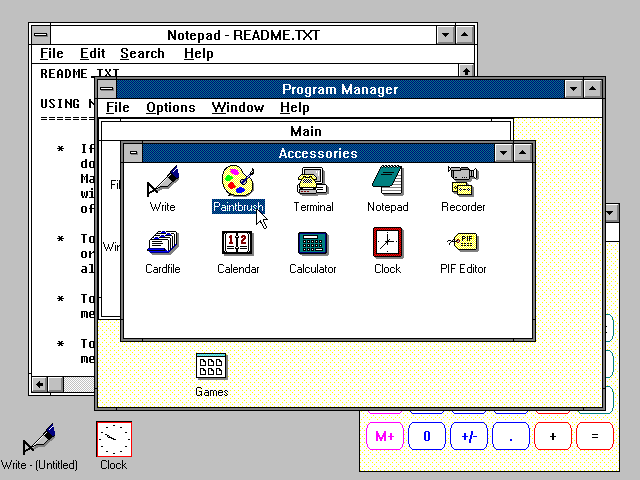
(source: GuidebookGallery.org)
I’ve been through Windows 95, 98, Millennium Edition(ME), XP, Vista (let’s never discuss this!), Windows 7 then 10 and currently 11.
Many of these changes in operating systems happened when I upgraded machines. Which would mean dragging all my data from the previous machine onto the new one and haphazardly dumping documents randomly every time I saved something. It was not a pretty sight!
Now, I have ‘hoarding tendencies’ due to some old trauma that I have to work on every day. Digital hoarding is a nightmare and I have attempted to deal with it over time.
Back in 2015, I wrote an article called How To Organise Your Writing On Computer and it’s still one of my most popular articles. I was able to get a lot of my writing documents (of which there are loads) more organised. This article is just expanding on that one as there are still a lot of NON-writing documents and pictures I need to declutter.
If you hold onto physical items – you can see them, they take up space in your life, they make it hard to clean, they are in your eye line or every time you open a cupboard all you see is the “noise” of stuff.
Digital clutter is different, it’s subtle, and it’s “hidden” in a way – unless your desktop looks like an explosion of icons.
So create a plan and work through it slowly. This isn’t a done-in-a-day or even a weekend type of task for many.
Start With A Tree

Let’s start with documents, pictures etc on desktop computers and laptops.
You need to come up with the Tree. These are the main-level folders you need. Think of your computer like a filing cabinet, most filing cabinets don’t have a million files for every little thing: they categorise.
Main Level Folder Examples:
- Writing
- Business
- Work
- School
- House
- Car
- Health
- Pets
- Photos
- Podcast
- Social Media
So take some time to go through your documents and current folders, what jumps out. Are there specific folders you use all the time? Do you have documents or photos that you haven’t got a “folder” for? Can these be categorised together?
Draft out some main-level folders (you can add more later, but get the main ones down). Try not to have too many.
Once you have your main Tree, you can then add in the branches. The first is the Second-Level folders:
- Writing
- Novels
- Short stories
- Marketing
- Beta feedback
- Business
- Accounts
- Product photos
- Templates
- Policies
- Work
- Wage slips
- Official documents (letters and contracts)
- School
- Year 1
- Year 2
- Year 3
- House
- Utilities
- Decor
- Insurance
- Deeds
- Home Inventory (photos and receipts)
- Car
- Maintenance
- Insurance
- Breakdown service
- Official documents
- Health
- Person 1
- Person 2
- Pets
- Medical
- Photos
- Care sheets
- Insurance
- Photos
- By year
- Podcast
- Episodes
- Graphics
- Social Media
- Insta
These are just some examples, many of these are on my computer. Now, I could have an “Insurance” folder and put in ‘car, house and pet’ insurance details but I don’t like that, it wouldn’t work as well for me. You must set up the system that works best for you.
Notice my second level is still broad categories. For example, under House I have utilities. This includes bills such as gas, electricity, rates etc. I don’t need to break all these down individually in the second level, these are third-level folders.
If we had more than one car, my second-level folder might be by car. Just like Health is by person, so each person’s medical details go into their own specific folder.
Let’s look at Third-Level Folders (so as not to make it too long, I just picked one folder from each)
- Writing
- Novels
- The Blessed
- Trinity Hart Series
- A Coming Storm
- Novels
- Business
- Accounts
- Customer Orders
- Purchase Invoices
- Fees
- Postage Receipts
- Accounts
- Work
- Wage slips
- Year 2022
- Year 2023
- Wage slips
- House
- Utilities
- Rates
- Gas
- Electricity
- Phone & Internet
- Mortgage
- Utilities
- Car
- Maintenance
- Car tax
- MOT
- Service
- Maintenance
- Pets
- Medical
- medicine details
- vet details
- vaccination records
- Medical
- Photos
- By year
- By event
- By year
Many of these third-level folders are the last folder. For example, Photos, I like to organise by year, then within that, by event and then all the photos of that event go in that folder. I don’t need to break it down further by who is in the photo or anything.
Other third-level folders need another level. Such as my writing, each of those novel folders will have additional folders within such as Character Profiles, Location Photos, World Book etc.
The best way is to aim for between 2 and 4 levels of folders. Any more than that and it can get quite messy. If you are going beyond 4 levels, ask yourself why – do you really need to separate out further? Could you organise the documents or pictures within the 4th level with a naming convention?
For example, rather than having your car insurance broken down by year folders. Could each document be named with the year?
Bad:
- Car Insurance
- 2022
- Car Insurance.doc
- Insurance policy document.doc
- 2023
- Car insurance.doc
- Insurance policy document.doc
- 2022
Better:
- Car Insurance
- 2022 Insurance Certificate.doc
- 2022 Insurance policy document.doc
- 2023 Insurance.doc
- 2022 Insurance policy document.doc
This way, you have just one sub-folder “Insurance” and then the documents are all stored in their alphabetised by their dates. Rather than multiple subfolders.
PS: Yes, I know with insurance you can usually discard the old insurance docs once the new ones appeared, but it was just good to use as an example and some people like to keep at least 1 extra year of docs.
Create A Dump Folder
While you are organising your folders, you will definitely find documents that have no home. Or ones that you need to look at ASAP and don’t want to forget or misplace.
For this, create a Dump Folder on your desktop. Put any extra documents, pictures etc in this folder. If they are super urgent, add an underscore _ to the front of their name. This will put them at the very top of the folder and you will know to check these first.
The dump folder is to stop you from getting derailed. If you find a document or two and aren’t sure where to file it, it can slow you down as you umm and ahh about the “best place”. Skip it, put it in the dump folder and keep moving.
You want to move swiftly with everything that is the easiest to organise and get into the right place. Yes, you may end up with a lot in the dump folder – that’s okay. At least everything is corralled there.
Create A Task

Once you have created your Tree, your Second-level, Third-level and perhaps Fourth-level folders, you can start moving everything into them. If you find duplicates, this is a good time to delete them – always double-check which is the most up-to-date.
Many of these might already be in something similar so it shouldn’t be too hard. The random things are in your dump folder.
Now you are just left with your Dump Folder and it might be REALLY full. That’s okay. Don’t overthink this and obsess over all the items in this folder.
Create a Task-a-day (or a week) of sorting through this folder (and put it in your diary/calendar). It can be quantity (no. of items to get through) or by time (length of time you want to commit in a single sitting).
I personally prefer to give myself a number, say 20 documents. If I am still pumped to do more, I then set myself a task of 30 mins and do as many as I can in that time.
I recommend in the first instance changing the view in this Dump Folder to include details and filter by type. Then go straight to the pictures – these will usually be .jpegs, .tifs, .pngs
Go through these first. They are usually easier than documents.
Once the Pictures are done, how you do the rest is up to you. I like going through Spreadsheets next then Documents. I will often glance at the name of each document and add a category to the front.
For example, if I have the following documents in my dump folder:
- Book tracker schedule
- address label sheets
- Making bird suet cakes
- Nominet letter
- Planting schedule
- Cat tree receipt
I will change their names by adding a category so they filter together.
- GARDEN Making bird suet cakes
- GARDEN Planting schedule
- RECEIPT Cat tree receipt
- WRITER Book tracker schedule
- WEBSITE Nominet letter
- XMAS address label sheets
If I do this to most of my documents it allows me to often just cut and paste the connected documents into the specific folders.
This makes it quicker than cutting and pasting individual documents into their correct place. It also allows me to realise if I need another Main Level or Sublevel folder.
Think Before You Save

If you have a lot of things on your computer, as you go through organising and decluttering, you will find you become more intentional with the save button.
The more you organise the more you stop and think “Do I need to save this?” Instead of saving a full article, take an extra 10 mins and pull out the salient points into a smaller document or a Scrivener file (I do this for marketing ideas) or add them to a Trello card.
When you go through your photos – don’t just keep all the good, non-blurry ones – really think about why you need 18 pictures of the Eiffel Tower. Take a breath and then pick just 3. Pick the ones that are truly eye-catching, the ones that bring you the most memories.
Links & Bookmarks

If you are actually capable of using bookmarks (awesome, I hate you! 😀 I wish I could do that) that’s great, use them.
If you are like me and have a hundred tabs open, be ruthless. Close those tabs, check them, and if you have the time READ them, now! Right now. If not, close them – release yourself.
If you really can’t do that, add the link to your online calendar (if you use one). Add them in one or two a day. That way you are giving yourself the task to read/watch through those links. If you fail to read them – delete them!
I set a timer for 30 mins and went through every tab I had open. Decided if it was really important – I saved the link on a Trello card and put it under my Trello calendar so I had links on each day.
Others, I just closed. It was hard but it was also freeing and I don’t miss any of them. In the end, we only have so much time. Do you really need to read another article on Marketing if you’ve already read 20+?
YouTube Videos

Do you add Youtube videos to your “Watch Later” pile? I do, I am a devil for it. I had so many in that Watch Later.
Similar to the links, I have started to drop the URL to these videos into Trello cards that I put against certain days – usually, ones where I am making items or scanning documents. This ties the two tasks together and I get through more videos that way.
Phone

How many of you have a plethora of photos and videos on your phone that you haven’t gone through?
I take a lot of photos, I also take a lot of duplicates because my hand shakes and I get blurry photos. Multiple pictures allow me to have a chance of a good one.
But I then forget to go through them.
So I set up a daily alarm for the evening when I’ve finished work and I’m chilling. It lets me know to go through my photos. I set a time for 20mins and then just work through the photos and videos.
I put them into folders (by event) and on Sundays, I then connect my phone and PC and move the event folders I want off the phone, onto the PC. Ready to be backed up.
Remember, we all have these pockets of time we can use to do tasks we have been putting off. 10 mins here, 15 mins there it all adds up. I think you can manage to do 10 mins less social media scrolling 😉
~ ~ ~
With all these devices it’s easier than ever to overwhelm ourselves with information, but sometimes we have more than we will ever get through in our lifetime. Getting the chaos under control, and setting up systems to reduce that from happening again can really make your life easier.
I haven’t covered everything in this article – mainly because it is way longer than I expected, but I thought I’d cover some of the areas I struggle with. If there’s anything you want me to cover specifically, just drop me a comment.
Happy writing & stay safe


I write articles on writing, marketing, blogging, organising and more. Do you like what I do? Want extra content? Want to know about my stories? Want exclusive access to even more free resources in my members-only vault The Library and be the first to know about giveaways and new releases? Then sign up for my monthly newsletter and get a FREE copy of my short story The Locksmith.
Or visit my LinkTree to find everything
~ ~ ~
Sources: Imagery via Canva and GuidebookGallery.
© Ari Meghlen. All Rights to the works and publications on this blog are owned and copyrighted by Ari Meghlen or their respective owners in the case of guest posters, advent participants, podcast hosts etc. The Owner of this site reserves all permissions for access and use of all documents on this site. NO AI TRAINING: Without in any way limiting the author’s [and publisher’s] exclusive rights under copyright, any use of this publication to “train” generative artificial intelligence (AI) technologies to generate text is expressly prohibited. The author reserves all rights to license uses of this work for generative AI training and the development of machine learning language models.
 Author Ari Meghlen Official Website
Pingback: November Goals 2023 – Author Ari Meghlen Official Website
Pingback: How To Organise Your Writing On The Computer – Author Ari Meghlen Official Website
Excellent advice, Ari! I really need to do this, I just have to find the time.
Thanks Kate. lol I know what you mean, decluttering our digital lives can be so time consuming, it’s hard to find time to allocate to it.
I’m trying to do bits at a time and in my diary I note down which of the folders I want to tackle that day/week.
Otherwise I get that “mad moment” of trying to do it all at once… and then getting overwhelmed… and then feeling bad… and then eating peanut butter from the jar to cheer myself up. lol bad cycle
Breaking it up sounds like an ideal plan. I keep getting notices my storage is nearly full, so I’m going to have to start and do something soon. I’m just trying to finish my current project and I’m going to use the break I’ll take after it to tackle things like this. I think your tips will be a big help!
Urgh! I have a storage full notice, I really need to deal with that – especially on my phone. I keep knocking those notices off. Not good!
Same.
This is a great post! I try and stay as organized digitally as I do on paper, but paper is still my jam (really bad Dad joke and on Father’s Day, no less). There’s something about a pretty journal that makes me want to get organized. Computers don’t inspire the same desire.
I agree, paper is so much “friendlier” and I love me some notepads for organising and notes. Unfortunately part of my brain is not as big a fan which is why I end up with 5 notebooks all half filled with novel notes… for the same novel.
I need to keep reminding myself to do more digital organising and stick to the system, which has worked since I moved to the PC (for some reason my laptop was just a crap-bag of chaos at times).
Woohoo! I am a HUGE fan of well organized systems so I was eagerly along for the ride as you broke down your folder and digital organization system. I use similar folders and subfolders but reading this has me inspired to go back in and do a little half-way-through-the-year purge. 🙂
Yay! Always love it when someone tells me they like organised systems. There’s something so nice about a truly organised and neat system.
I am still working through mine, I may have all the tips and tricks, but I have SO many folders (not even going to look at my hard drives yet) that I need to reorganise.
But it is getting nicer and nicer as I do it.
I like the idea of a half-way-through-year purge. I may have to pencil that in to my calender every year as a good way to keep on top of it. 🙂
We must be twins. I’m bookmarking this.
lol thanks for reading. How are you managing your own digital decluttering?
I don’t know about you, but every now and then I come across a folder that scares me a little – one of those ones that needs a good organise but it’s so messy I keep ignoring it! lol
I’m not at all.😂 That’s why I needed this post. I’ve just bookmark everything.
lol do you ever re-check those bookmarks? Or do they end up in the bookmark graveyard? 😀
Not in the bookmarks, but usually I type stuff into the search bar and the link will come up again.☺️ I’ve mostly deleted all links I don’t care about, but I go over links over again. Some more than others. I need to declutter still.
🙂
I use leveled folders too. It really helps.
Thanks for reading, Andrew. Yes it really does. So many people still don’t use levelled folders, and just try and use the Search option to find everything. *twitches* that would drive me crazy.
I know what you mean. Levelled folders, I’ve found, can help with bookmarked Internet sites.