
Welcome back to my Blogger Series. Throughout this Series, I have discussed the purpose of your blog, choosing a platform, creating posts and SEO etc.
Now the last thing we want is all that hard work to be in vain. As with anything online, creating a back-up is important. So just how do you back up your blog?

Wait, You Can Back-Up Your Blog?
Yes, you can! I have met several bloggers unaware of this fact, so I felt the need to include this post in my Blogger Series.
We often treat things online as existing forever, but that’s not the case. You can lose your blog and all that lovely content you have worked hard to create and upload.
Why You Should Back-Up Your Blog
The same reason you should back-up your novel because you might lose it. This is especially important when your blog is run on a platform such as Blogger or WordPress.com where you don’t have the same level of control as a self-hosted platform.
There are many reasons why you could lose your blog. Everything from a violation of their T&Cs to the company just closing down could be the end of your blog.
The last thing you want is to lose all the extensive content you have been building up and all the awesome comments you’ve received.
This becomes even more apparent if you’ve been blogging for a long time and built up a lot of content and a recognisable brand.
So do yourself a favour and back-up your blog, then set reminders to do this regularly.
How To Back-Up Your Blog
Now since I use WordPress.com and most of my followers seem to be on this, I will discuss how to back-up on this platform.
However, at the bottom of this post, you will find links to articles on how to back-up other blogging platforms.
Backing up your WordPress.com Blog
1) Go to the My Site button at the top left corner of your blog and click to bring up your dashboard.

2) Scroll down to the Configure section and click WP Admin
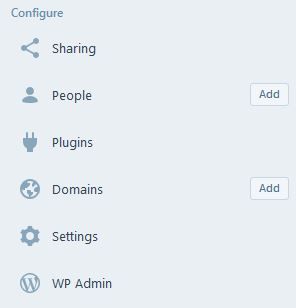
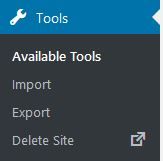
3) This will open up a new dashboard, now scroll down to Tools and select. A drop-down box will appear of the available tools. Select Export.
4) The Export page will give you two options. The first is the free option where you can create an XML file containing all your posts and comments.
However, please note it doesn’t save the images. But then again, if you keep copies of all your images, this shouldn’t be too much of an issue.
This is more about saving your written content. (This option is also good if you are choosing to move to another website and can manage the migration yourself.)
There is also a Guided Transfer at a single cost of £109 (currently), however, this is more for exporting your website (images and all, I believe) so that it can be moved to a self-hosted WordPress.org site.
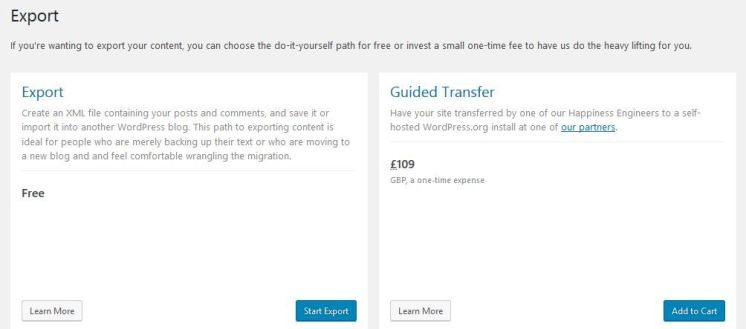
If you are just looking to do a standard back-up, then you just want to click the Start Export button.
It may take a little time depending on how much content is on your blog.
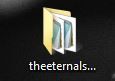
5) Once the Export has been completed you will have a folder that contains the data. The folder’s name will include the website and the date of the back-up. (My website is actually called The Eternal Scribbler, hence why my back-up folder looks like this)
Where To Store Your Back-Ups?
As with all back-ups, it’s best to store them in multiple places. So include an easy-to-access copy on your computer and then another on an external hard drive, or better yet, a cloud storage system such as Dropbox or Google Drive.
That way if your computer dies or gets corrupted, you always have another back-up ready.
Links For Backing Up Other Websites
For those who don’t use WordPress.com, here is a list of articles on how to back-up other blogging platforms.
Do you regularly back up your blog?
Happy writing

 Author Ari Meghlen Official Website
Thank you, Ari. I will have to remember to do this, though I haven’t had time to write a post for months!
Sorry to hear that. I do pop over to your blog from time to time just to check I haven’t missed a new post.
I know things can get so busy, hope everything is good with you 🙂
Yes, thank you Ari. All is well 🙂
Pingback: How to keep your blog flowing with new ideas | Ari Meghlen – Writer | Blogger | Bad card player
Oh no! I hadn’t thought about it until now. Thank god for your posts. Hum, I’m wondering if OneDrive is as good as Dropbox or GoogleDrive? 🤔 And you’ve reminded me to buy another external hard drive. You can never have too many backups.
I can recommend Mega, it’s a new cloud system from New Zealand and they give a load of storage even on the free version
Thank you. 💕😊
Hi Lorraine, if you haven’t already looked into/signed up with Mega – let me know. As I can refer you which I think means we both get some extra storage space. I’d just need to put in your email and they’ll send you the link. Let me know if you are okay for me to do this (totally fine if not)
Thank you Ari. I’m all set up already. 😘
Awesome 😊
I guess I’ll think about this when(?) I actually have much of a blog to worry about preserving. 😉
A good post and needed post, Ari!
lol thanks Pearl 🙂
I haven’t backed mine up….. yet. How often should I do it?
Thanks for reading. I personally back mine up at the end of every week because I don’t want to lose more than a week’s worth of posts if the worst happens.
Then I only keep 1 months worth of copies at a time.
Thanks for the advice! I’ll definitely look into that!
Glad I could be of help 🙂
I do not back up my blog and it looks like I need to get into the habit. Thank you for this reminder.
Lol that’s ok, I feel like a lot of people don’t. I have a reminder in my diary to back up each week. Then I just keep one months worth of copies.
What a fantastic tip! Thank you!
Glad you found it useful, Anne 😊
This is definitely good to know. I guess I’ll be doing that tomorrow. Six years worth of posts here… lol.
Glad you found it useful 😀 After so many years, the last thing you want to do is lose all that work! 😀
Ugh, that would be awful.
Thanks so much for this great informational post, Ari! 🙂 Sharing and backing up my blog… xo
Thanks for reading, Bette. Glad you found it useful 🙂 Thanks for sharing
Good to know!
Glad you found it helpful 🙂
Wow thanks for this. Doing this over the weekend.. You are fab Ari
Thanks so much for reading. Glad you have found this useful. Always good to have these backups 😀
Saved this post! Definitely doing the back up thing! Thanks! 🙂
Thanks for reading, glad you found this article useful 🙂